Understanding SSH Key Random Art
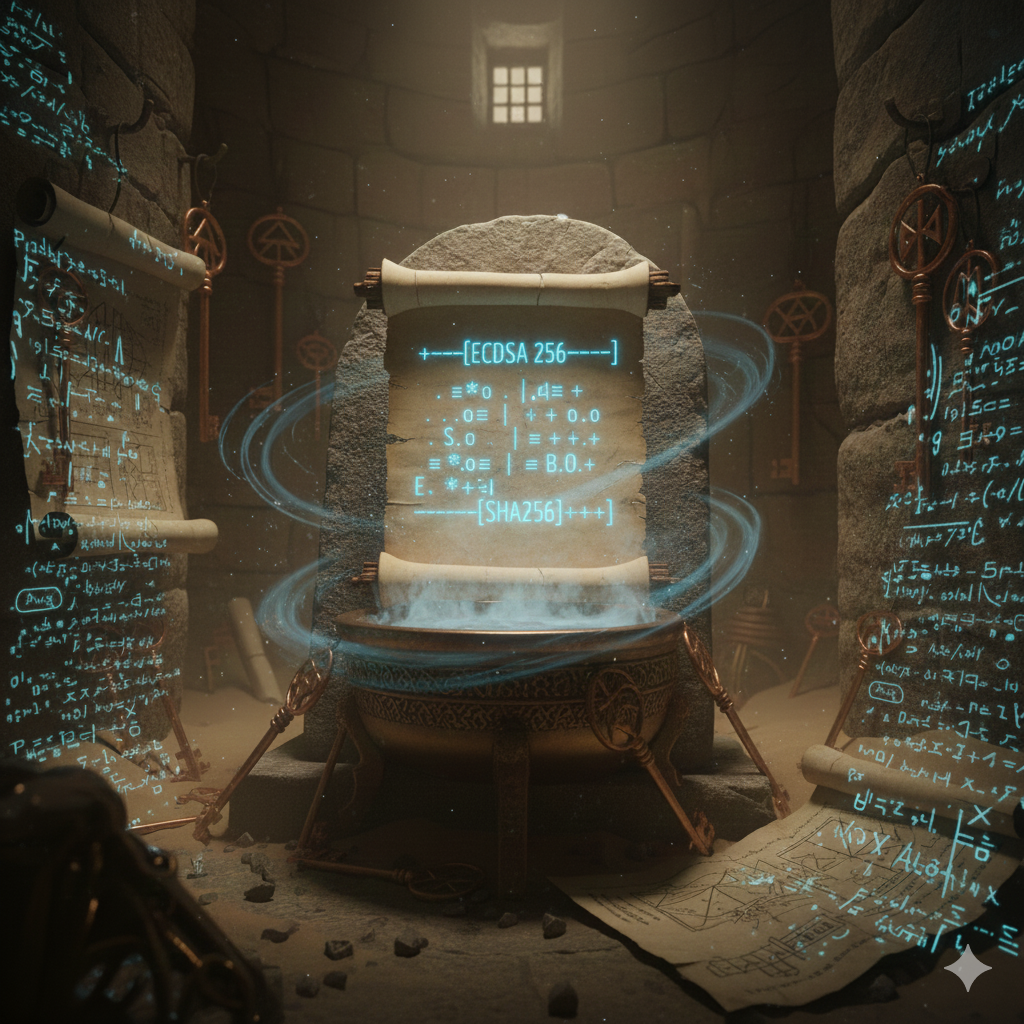
When you generate an SSH key pair, you might have noticed a peculiar ASCII art image appear alongside your key fingerprint:
+--[ED25519 256]--+
|        .o+=     |
|       . .o.o    |
|      . + .+     |
|     . = B .o    |
|    . + S +  .   |
|     o + = o  .  |
|    . o B = .. ..|
|     . = * o..o.o|
|      E . o.oo+=+|
+----[SHA256]-----+
This image is called randomart, and it's not just decoration—it's a clever security feature designed to help humans verify SSH keys at a glance.
What is SSH Randomart?
SSH randomart is a visual representation of your key's fingerprint. It was introduced in OpenSSH 5.1 (2008) by Alexander von Gernler, inspired by graphical hash visualization schemes known as "random art."
Fun fact: The general concept is called "random art" (two words), but OpenSSH's implementation is officially "randomart" (one word). You'll see this spelling in ssh-keygen output and the OpenSSH source code.
The core idea is simple: humans are much better at recognizing images than memorizing long strings of hexadecimal characters.
Compare these two representations of the same key:
Fingerprint:
SHA256:nThbg6kXUpJWGl7E1IGOCspRomTxdCARLviKw6E5SY8
Randomart:
+---[RSA 4096]----+
|     .+*=o       |
|    . +o=.o      |
|     o.+.* .     |
|    ..+.= +      |
|   . o.oS= .     |
|    o .oo.=      |
|   . o .o+..     |
|    o  .oo+E     |
|     ...o=+      |
+-----------------+
Which would you find easier to recognize if it changed?
The Drunken Bishop Algorithm
The algorithm that generates randomart has a whimsical name: The Drunken Bishop. Here's the story behind it:
Bishop Peter finds himself in the middle of an ambient atrium. There are walls on all four sides and apparently there is no exit. The floor is paved with square tiles. His head heavily aching—probably from too much wine—he starts wandering around randomly. Well, to be exact, he only makes diagonal steps—just like a bishop on a chess board.
How It Works
-
The Board: A grid of 17 columns × 9 rows (153 squares total). The bishop starts in the exact center at position (8, 4).
-
The Fingerprint: The key's fingerprint hash is split into 2-bit chunks. Each chunk represents one of four diagonal moves.
-
Movement Encoding:
Bits Direction 00Northwest ↖ 01Northeast ↗ 10Southwest ↙ 11Southeast ↘ -
Walking: The bishop processes the fingerprint byte by byte, least significant bits first. For each 2-bit pair, he moves diagonally. When he hits a wall, he slides along it.
-
Counting Visits: Each cell tracks how many times the bishop visited it. After 64 moves (128 bits of fingerprint), the walk is complete.
-
Rendering: The visit counts are converted to ASCII characters:
Visits Character 0 1 .2 o3 +4 =5 *6 B7 O8 X9 @10 %11 &12 #13 /14+ ^Start SEnd E
The start position is marked with S and the end position with E, overriding any visit count character.
Viewing Your Key's Randomart
When Generating a Key
Randomart is shown automatically when you create a new key:
ssh-keygen -t ed25519 -C "your_email@example.com"
For Existing Keys
To view the randomart for an existing key:
# For a private key
ssh-keygen -lv -f ~/.ssh/id_ed25519

# For a public key
ssh-keygen -lv -f ~/.ssh/id_ed25519.pub
The -l flag shows the fingerprint, and -v (verbose) adds the randomart visualization.
Example Output
$ ssh-keygen -lv -f ~/.ssh/id_ed25519
256 SHA256:ABC123...xyz user@host (ED25519)
+--[ED25519 256]--+
|      .o..       |
|     .  o.       |
|    .  . ..      |
|   o .  o  .     |
|  + = .S o       |
| . B = .= +      |
|  + * +..= .     |
| . o =.o+.o      |
|  E.o.+o++       |
+----[SHA256]-----+
Enabling Randomart for SSH Connections
You can configure SSH to display randomart when connecting to remote hosts. This helps you visually verify you're connecting to the expected server.
Add this to your ~/.ssh/config:
Host *
    VisualHostKey yes
Now when you connect to a server, you'll see its host key randomart:
$ ssh user@example.com
Host key fingerprint is SHA256:nThbg6kXUpJWGl7E1IGOCspRomTxdCARLviKw6E5SY8
+---[ECDSA 256]---+
|       .=*o .    |
|       .+= +     |
|      . .o= .    |
|       + o.o     |
|      . S.o .    |
|     . = +.+     |
|      = *o=.     |
|     . B.O.+     |
|      E.*=+      |
+----[SHA256]-----+
If someone performs a man-in-the-middle attack and presents a different key, you'll notice the randomart looks completely different—even if you can't tell the difference in the hex fingerprint.
Practical Security Considerations
Differentiation vs. Identification
Randomart excels at differentiation: noticing when something has changed. If you've connected to a server before and memorized its randomart pattern, you'll quickly spot if a different key is presented.
However, it's less useful for identification: positively confirming a key is correct without prior reference. For that, you still need to verify the full fingerprint through a trusted channel.
The Center Bias
Due to the nature of random walks, the bishop tends to spend more time near the center of the grid. The corners are rarely reached. This is a known limitation but doesn't significantly impact the algorithm's usefulness for differentiation.
Best Practices
-
First connection: When connecting to a new server for the first time, verify the fingerprint through an out-of-band channel (e.g., ask your sysadmin, check documentation).
-
Subsequent connections: Use randomart as a quick visual check. If it looks different, investigate before proceeding.
-
Key rotation: When you rotate keys, take a moment to memorize the new randomart pattern.
Generating Custom Randomart
If you're curious about how different fingerprints produce different patterns, you can experiment by generating multiple keys:
# Generate a temporary key to see its randomart
ssh-keygen -t ed25519 -f /tmp/test_key -N "" -q
ssh-keygen -lv -f /tmp/test_key
rm /tmp/test_key /tmp/test_key.pub
Each key will produce a unique randomart pattern, making it easy to distinguish between different keys visually.
Summary
SSH randomart transforms cryptographic fingerprints into memorable visual patterns using the Drunken Bishop algorithm. While it won't replace proper key verification procedures, it adds a valuable layer of human-friendly security by leveraging our natural ability to recognize and remember images.
Key takeaways:
- Randomart helps humans quickly notice when a key has changed
- The Drunken Bishop algorithm creates the pattern from your key's fingerprint
- Enable
VisualHostKey yesin your SSH config for connection-time verification - Use
-lvflags withssh-keygento view randomart for existing keys
References
Primary Sources:
- OpenSSH Source Code (sshkey.c) - The
fingerprint_randomartfunction containing the actual implementation - The Drunken Bishop: An Analysis of the OpenSSH Fingerprint Visualization Algorithm - Academic paper by Dirk Loss, Tobias Limmer, and Alexander von Gernler
Additional Reading:
- SSH Randomart: How Does It Work? - Ben Cox's detailed explanation
- OpenSSH Keys and The Drunken Bishop - Aaron Toponce's walkthrough